Free Stripe Checkout for WooCommerce
Your customer places the order, pays on Stripe's own hosted Checkout page, and lands back on your order-received page. No card fields render on your site, so no card data ever reaches your server.
Version 1.3.0 · Requires PHP 8.3+, WordPress 6.0+, WooCommerce 7.0+ · GPL
- unit tests on every commit
- 183
- PHPStan static analysis
- Level 5
- no Stripe SDK, no build step
- No SDK
- added transaction fee
- 0%
How the Stripe redirect checkout works
Three steps, and the customer never types a card number into your WordPress install.
-
The customer places the order
They fill in checkout as normal and choose your Stripe payment option. Nothing about your checkout page changes, and no card fields render on it.
-
They pay on Stripe
The plugin creates a Stripe Checkout Session and sends them to Stripe's own hosted payment page, itemised with your product lines, shipping and any fees.
-
They land back on your order-received page
Stripe returns them to WooCommerce. A signed webhook confirms the money moved, and the plugin also re-checks the session directly so a slow webhook never strands a paying customer.


If they back out of the Stripe page, they return to the WooCommerce order-pay form and can retry or choose another payment method — not a dead-end receipt page.
Hosted Stripe Checkout and embedded Elements, side by side
Most WooCommerce Stripe plugins embed Stripe Elements in your own checkout page. This one hands the whole payment to Stripe's hosted page. Here is what actually differs.
| Hosted Checkout (this plugin) | Embedded Elements | |
|---|---|---|
| Where the card is entered | On Stripe's hosted Checkout page | In fields embedded on your own checkout page |
| What loads on your storefront | No card-collection JavaScript. The only script is a small payment-method registration on the block checkout page itself | Stripe's JavaScript library plus the gateway's own bundle |
| Theme and checkout collisions | None to re-theme — the payment page is not yours | Card fields are styled by you and can break when the theme or checkout changes |
| PCI scope | The payment page comes wholly from Stripe, which is the smallest scope available to a merchant | Tokenising scripts run on your page, which pulls your page's scripts into scope |
| Saved cards and subscriptions | Not supported — every payment is a one-time Checkout Session | Supported, because the card is tokenised and stored for reuse |
| Payment method configuration | Your Stripe Dashboard. New methods appear without a plugin update | Per-method settings inside the plugin |
Where embedded Elements wins: if you need on-site funnel control, saved cards, subscriptions, or express-checkout buttons on product pages, use an embedded gateway instead. This plugin will not grow those features. If you are weighing payment models more broadly, our guide to merchant of record vs payment processor covers who stays liable for tax under each — with Stripe, that is you.
Payment methods come from your Stripe Dashboard
Because the payment happens on Stripe's page, whichever methods you have enabled in your Stripe account are the methods your customers see. The plugin sends no method list at all, so Stripe decides what to show based on your account, the order's currency and the customer's location. Turning a method on is a Stripe Dashboard change — not a plugin update, not a per-method settings screen, and not a support ticket.
How the plugin confirms a payment
A redirect back to your site proves the customer's browser came home. It does not prove the money moved. Everything below exists because those are different facts, and getting them confused is how stores end up shipping unpaid orders — or charging twice for one.
Signed webhooks, verified properly
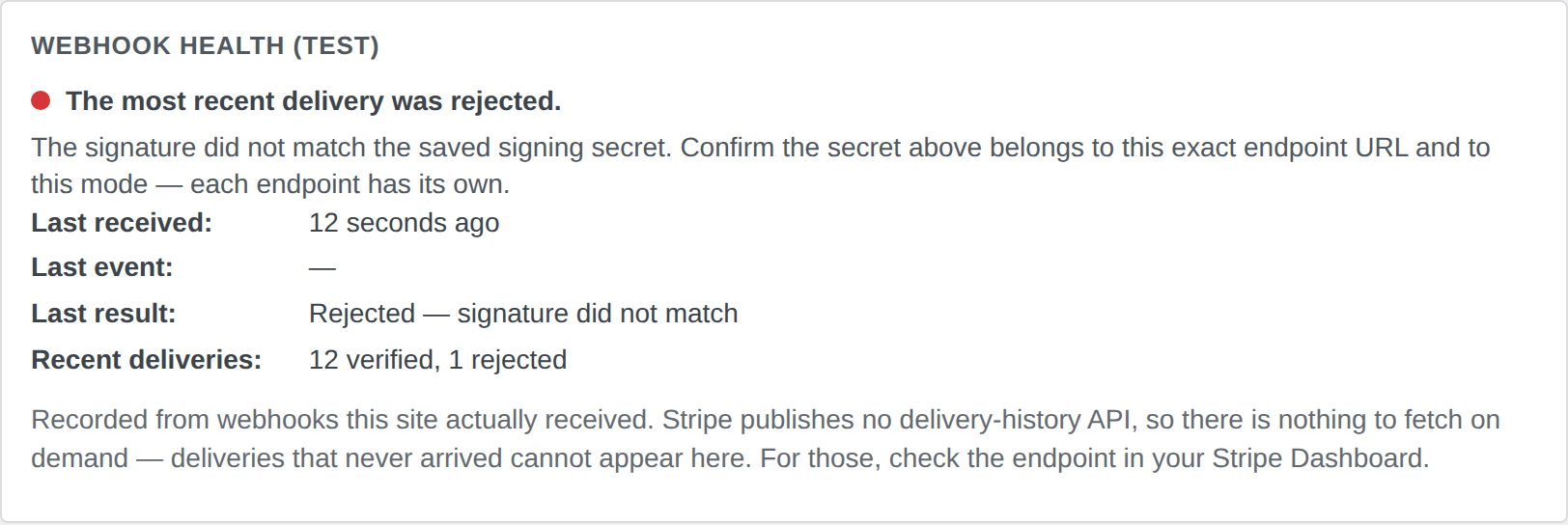
Every delivery is checked with HMAC-SHA256 against the signing secret for that mode, inside a five-minute timestamp tolerance so a replayed request is rejected. Every signature in the header is checked rather than only the first, so rolling your signing secret does not silently reject half your events. A failed check returns an opaque error that tells a prober nothing.
Each event is processed exactly once
Stripe retries deliveries, and a retry that arrives while the first one is still running is a real way to double-process an order. The plugin claims each event in an atomic database ledger before doing any work, so a retry finds the claim already taken and stops.
The amount is verified before anything is marked paid
The amount and currency Stripe actually collected are compared against the order total. A mismatch holds the order for review and writes both figures into an order note, rather than quietly marking it paid.
Delayed-notification methods are handled honestly
A bank debit or voucher does not settle at checkout. Those orders stay on-hold until Stripe reports the money collected, and a debit that later fails moves the order to failed — rather than being treated as paid the moment the customer clicks through.
A late webhook never strands the customer
When the shopper lands on the order-received page, the plugin re-checks the session with Stripe directly — throttled to one call per order every fifteen seconds — so an order confirms even if the webhook is still in flight.
What the Stripe Checkout plugin does
A deliberately small feature set, with the awkward parts documented rather than hidden.
Stripe hosted Checkout
Customers pay on Stripe and return to your order-received page. No card fields are ever rendered by your site.
Block checkout, classic and HPOS
A dedicated Cart & Checkout Blocks integration ships alongside classic shortcode support, and compatibility with high-performance order storage is declared — WooCommerce lists no incompatibility notice.
Readable Stripe dashboard
Every payment carries a description like "Your Store Order #1234" in the Stripe dashboard and report exports, and refunds and disputes inherit it — so reconciling a payout never means opening bare payment IDs one by one. Going the other way, the transaction ID on each WooCommerce order links straight to that payment in the Stripe Dashboard, test or live.
Webhook registration and health
Create the endpoint from the settings screen, or follow the manual instructions printed there. A health card shows whether deliveries are arriving and verifying.
Restricted API keys
Run it on an rk_ key instead of handing a plugin your full secret key. The settings screen prints the scopes it asks for next to the field.
Refunds both directions
Refund from the WooCommerce order screen, or refund in the Stripe Dashboard and have it sync back as a real WooCommerce refund, de-duplicated by refund ID.
Separate test and live credentials
Each mode keeps its own API key and signing secret. Switching mode never discards the other pair, so you can move back and forth freely.
Itemised order lines
Product lines, shipping and fees are sent through to the Stripe page, so the customer sees what they are paying for rather than one lump total.
Payment method styling and descriptor
Show the Stripe wordmark, your own logo, or a plain title on the payment method row — plus an optional statement descriptor suffix on the card statement.
Set up Stripe Checkout in WooCommerce
Four steps, and none of them need a developer.
-
Install and enable the gateway
Upload the ZIP under Plugins → Add New → Upload Plugin and activate it. WooCommerce must already be active. Then open WooCommerce → Settings → Payments and tick Enable Stripe Checkout — it ships switched off.
-
Add your API key and test the connection
Paste the key for the mode you are in — a restricted
rk_key is enough — and press Test connection to confirm it actually reaches Stripe before you rely on it. -
Register the webhook
Press Register Webhook to create the endpoint and capture its signing secret automatically, or follow the manual instructions in the same screen, which print the exact event list and the endpoint URL. If an endpoint already exists on that URL the plugin refuses rather than create a second one, because Stripe would then deliver every event twice.
-
Switch to live mode
Repeat the key and webhook steps with your live credentials. Each mode needs its own endpoint and its own signing secret — a live endpoint will not confirm test orders, and that mismatch is the single most common setup failure.
Requirements and compatibility
This WooCommerce Stripe payment gateway targets a modern stack. The PHP floor is the one to check first — 8.3 rules out a lot of shared hosting.
- PHP 8.3 or later
- WordPress 6.0 or later (tested to 7.1)
- WooCommerce 7.0 or later (tested to 10.6)
- HTTPS Required by Stripe for hosted Checkout
- Webhook URL Must be reachable from the public internet
- Stripe account One API key per mode you use
Blocks and HPOS
The plugin declares compatibility with both the Cart & Checkout Blocks and high-performance order storage, so WooCommerce shows no incompatibility notice and the gateway appears on the block checkout as well as the classic one. HTTPS is required by Stripe for hosted Checkout; the plugin does not itself check for it.
Keys, access, and what the plugin can reach
Run it with a restricted Stripe API key
You do not have to hand this plugin your full secret key. It accepts restricted
rk_ keys in both
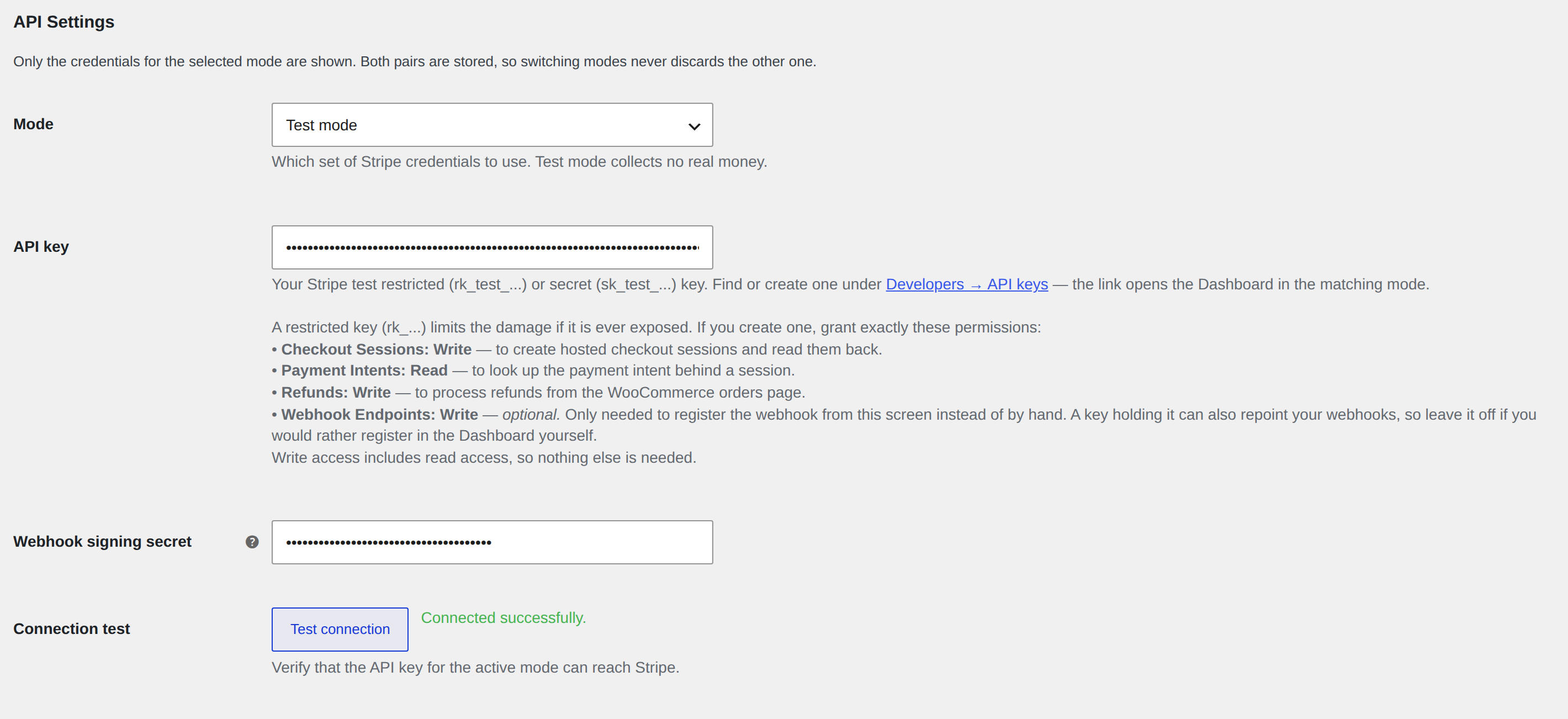
modes, and the settings screen prints the scopes it asks for beside the field:
Checkout Sessions: Write,
Payment Intents: Read and
Refunds: Write. Add
Webhook Endpoints: Write only if you want the plugin to
register or remove the endpoint for you. Decline it and set the endpoint up by hand from
the instructions in the same screen.
What talks to what
The plugin calls Stripe's REST API over WordPress's own HTTP API and ships no Stripe SDK. Your API key and webhook secret are never written to its log. The webhook health panel stores no payloads, no customer data and no identifiers, and it never calls Stripe while the settings page renders.
Two outbound calls do not go to Stripe, and it is only fair to spell them out. The update check itself sends nothing about your site — it is a plain request for the current version. Separately, an install ping runs hourly, and on activation and deactivation, reporting your site URL and locale, the plugin's version and whether it is active, your WordPress, PHP and database versions, your server software, and the administrator name and email address on the site.
Free, with no added transaction fee
This free Stripe plugin for WooCommerce is free. There is no premium tier, no gated payment methods, no license key, and no upsell. The update client ships in free mode: it never asks for a key, never activates anything, and adds no admin menu. Some "free" Stripe plugins take a percentage on top of Stripe's own fees, or put the payment methods you actually want behind a paywall. This one does neither — Stripe charges you its own processing fees directly, published on Stripe's pricing page, and nobody sits in the middle.
It isn't on WordPress.org — here's how updates reach you
Download the ZIP from this page and install it through Plugins → Add New → Upload Plugin. From then on, updates appear in your normal WordPress updates screen and install with one click, served from the PimiPay update endpoint at w4dev.com. No key to enter, nothing to activate, no extra admin menu. This is the standard mechanism behind every commercial WordPress plugin, and a different thing entirely from a nulled plugin off an unknown site.
Who maintains it
PimiPay is a small WordPress shop. The paid product is the Paddle for WooCommerce gateway, and it funds this one. The plugin is GPL, every release is versioned and changelogged, and the code is readable in your own install. Support is [email protected].
What this plugin deliberately does not do
Better you find this out here than after installing. None of the following is on the roadmap — a hosted redirect is the wrong architecture for most of it.
- Subscriptions or recurring billing
- Saved cards and one-click repeat purchases
- Card fields embedded on your own checkout page
- Express-checkout buttons on cart or product pages
- Authorize now, capture later
- Stripe Tax, or multi-currency conversion
- Dispute and chargeback handling
- Payout reporting or reconciliation screens
- Stripe Connect, marketplaces or split payments
If you need any of them, an embedded Stripe gateway that tokenises cards on your own checkout page is the right tool, and we would rather point you at one than sell you the wrong thing. If your question is a payments-model one rather than a features one, read Paddle vs Stripe for WooCommerce.
Frequently asked questions
Does the customer pay on my site, or do they get redirected to Stripe?
They are redirected. When the shopper presses Place Order, the plugin creates a Stripe Checkout Session and sends them to Stripe's own hosted payment page. They enter their card there, and Stripe returns them to your WooCommerce order-received page. The plugin renders no card fields at any point, so card numbers never touch your server. This is the design of the plugin rather than a setting — there is no embedded or inline mode to switch on.
Won't sending customers off my site hurt conversion?
It is a real trade-off and we will not pretend otherwise. What you give up is on-site funnel control. What you get back is a payment page Stripe maintains and optimises continuously — mobile-tuned, localised, with autofill and whichever methods your Stripe account has enabled — plus a card form your theme can never break. If a customer backs out of the Stripe page they land on the WooCommerce order-pay form and can retry or choose another method, so an abandoned redirect is not immediately a lost order; the Stripe session lasts an hour, after which it expires and the order is cancelled. If you run high volume and measure every step of an on-site funnel, an embedded gateway is the better fit and we would rather you used one.
Does it work with the WooCommerce Cart and Checkout blocks, and with HPOS?
Yes to both. The plugin ships a dedicated Blocks payment-method integration with its own client bundle, so it appears on the block checkout as well as the classic shortcode checkout, and it declares compatibility with both the checkout blocks and custom order tables, so WooCommerce will not list it as an incompatible extension. Return-leg reconciliation runs on the block Order Confirmation as well as the classic template. It is skipped for a visitor who cannot view the order's details, in which case the webhook confirms the order as usual.
Does this make my store PCI compliant?
No plugin can make a store PCI compliant, and any plugin that says it can is overselling. What this one does is reduce the surface: because the payment page is delivered entirely by Stripe, no cardholder data is entered on, processed by, or stored on your server. Merchants whose payment page comes wholly from their provider are generally in SAQ A territory, while embedding a gateway's JavaScript to tokenise cards on your own checkout page generally puts you in SAQ A-EP, which since 31 March 2025 carries PCI DSS requirements 6.4.3 and 11.6.1 in full — covering every script on your payment page, including analytics and chat widgets. SAQ A was revised in January 2025 to drop those two requirements, but it added an eligibility criterion in their place: you must confirm your site is not susceptible to script-based attacks. Your acquirer and the SAQ text decide your actual eligibility, and outsourcing the payment page does nothing to secure the rest of your WordPress install.
Do I have to set up a Stripe webhook? What happens if I skip it?
Yes, and it is not optional. The redirect back to your site is a courtesy; the webhook is the authoritative message that money moved. The plugin subscribes to five events: checkout.session.completed, checkout.session.expired, checkout.session.async_payment_succeeded, checkout.session.async_payment_failed and charge.refunded. Without a valid signing secret saved in the plugin, every delivery is rejected and orders rely entirely on the fallback re-check that runs when the customer lands back on your site — which only rescues orders that are still pending at that moment. You can create the endpoint with one click from the gateway settings, or follow the manual instructions shipped inside the settings screen, which print the exact event list and the endpoint URL for each mode.
Stripe took the payment but my WooCommerce order is stuck on pending. Why?
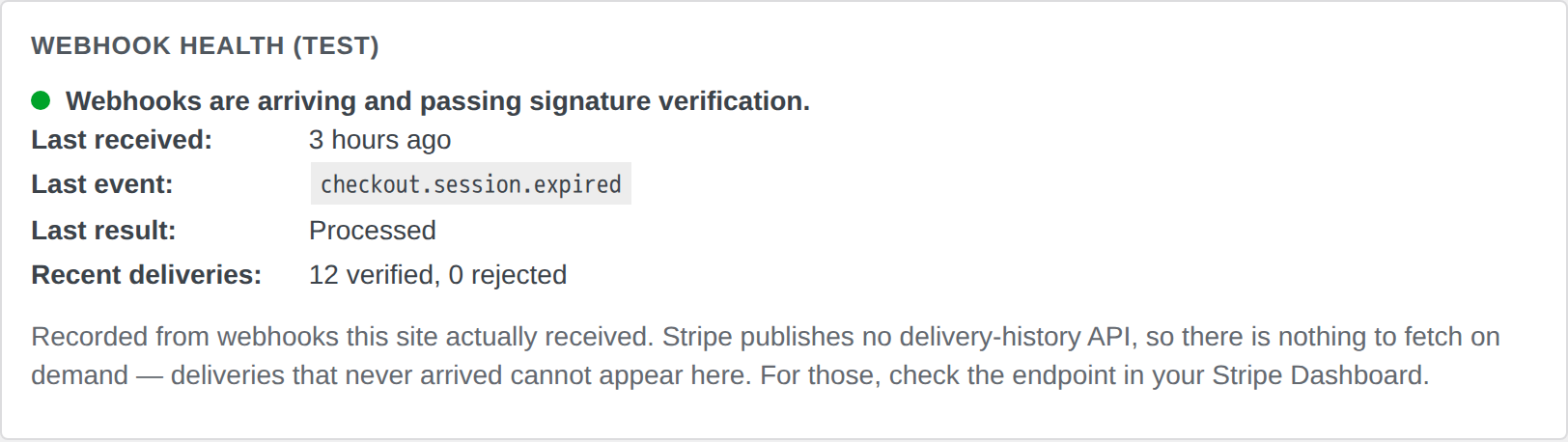
Work through it in this order. First, is the webhook endpoint registered for the mode you are in — a live endpoint will not confirm test orders, and mixing test and live keys or endpoints is by far the most common cause. Second, is the signing secret saved and correct. Third, can Stripe actually reach your site: a security plugin, firewall or HTTP-auth-protected staging site will silently swallow deliveries. Fourth, is this a delayed-notification method such as a bank debit or a voucher, in which case the order is correctly on-hold until the funds settle. The gateway settings carry a webhook health panel showing a traffic-light status, when the last delivery arrived, the last event type, and the last result with a categorised rejection reason and a specific fix hint — clock skew, a wrong or missing secret, an unreadable signature header, an unreadable payload, or a non-Stripe caller each get their own. One honest limit: that panel only reports deliveries that actually reached your site, because Stripe publishes no delivery-history API. For deliveries that never arrived, check the Stripe Dashboard's own delivery attempts.
Which payment methods will my customers see?
Whatever you have enabled in your Stripe Dashboard. The plugin does not specify a method list at all, so Stripe's own page decides what to show based on your account, the order's currency and the customer's location. That is the quiet advantage of the hosted model — turning a method on is a Stripe Dashboard change, not a plugin update or a per-method settings screen. One caveat: eligibility for methods like Klarna, iDEAL or Bancontact depends on your country, currency and Stripe account. Wallets need no work on your side, because the payment page is on Stripe's own domain, so there is no domain to register. Note also that the plugin adds exactly one payment row to your WooCommerce checkout rather than a row per method, and it adds no express-checkout buttons to your cart or product pages.
Can I use a restricted Stripe API key instead of my secret key?
Yes, and we would recommend it. The plugin accepts rk_ keys as well as sk_ keys, in both test and live mode, and the settings screen prints the scopes it asks for next to the key field: Checkout Sessions Write, Payment Intents Read, and Refunds Write. Webhook Endpoints Write is only needed if you want the plugin to register or remove the endpoint for you. Decline it and set the endpoint up by hand from the instructions in the same screen.
Does it support subscriptions, or saved cards for repeat purchases?
No to both, and that is a design boundary rather than a gap we are about to close quietly. Every Checkout Session the plugin creates is a one-time payment; it never stores a payment method for reuse, and it declares support only for products and refunds. Automatic renewals need a stored, reusable payment method that can be charged off-session, which a hosted redirect does not produce. If you sell subscriptions or memberships, use a tokenising gateway instead. If what you sell is digital and you are open to Paddle as merchant of record, the Paddle plugin does recurring billing: see pimipay.com/paddle-subscriptions-for-woocommerce/.
Can I refund from WooCommerce, or do I have to use the Stripe Dashboard?
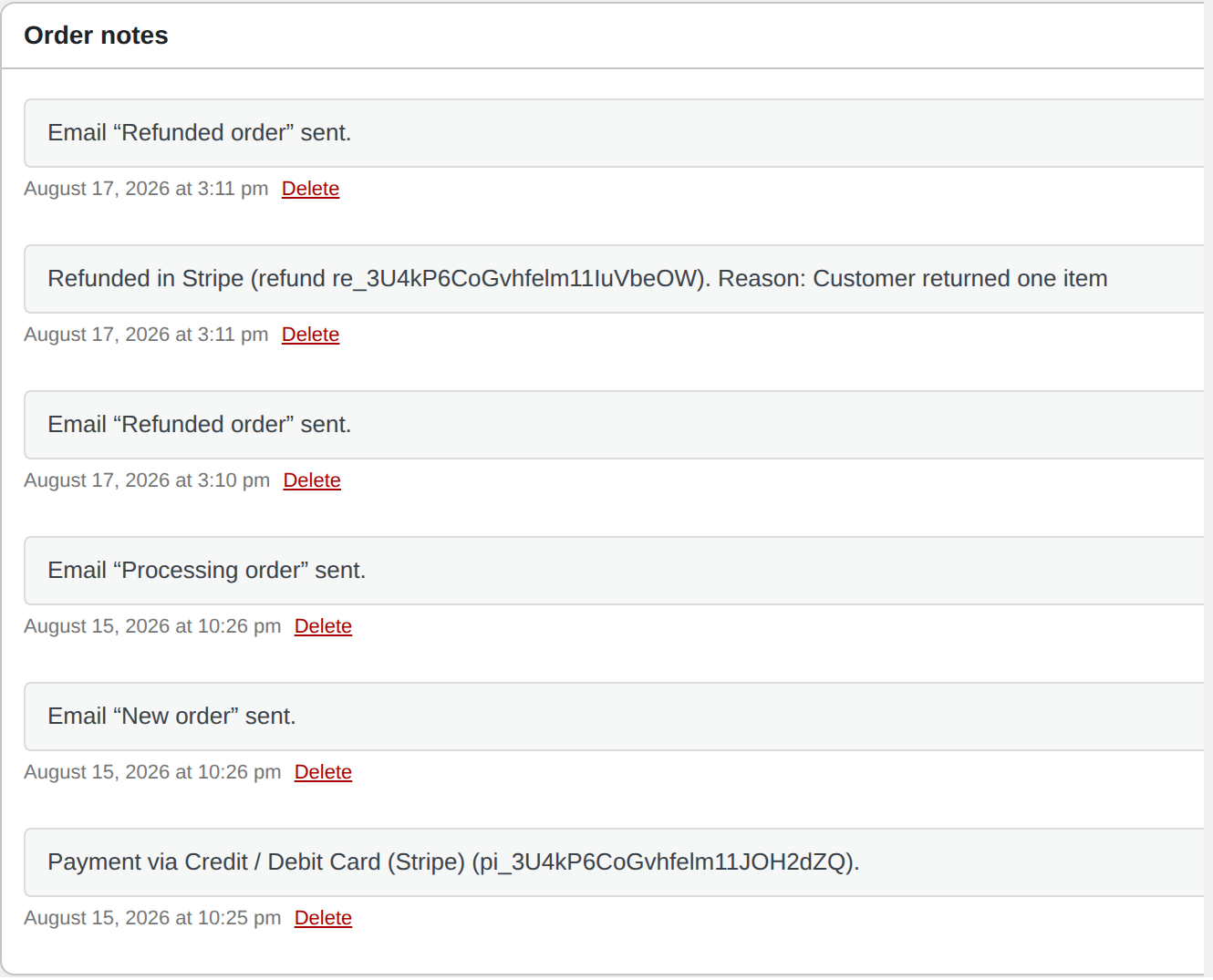
Either, and they stay in sync. Full and partial refunds issued from the WooCommerce order screen are sent to Stripe against the order's PaymentIntent in the order's own currency, and each is recorded as an order note carrying the Stripe refund ID. Refunds you issue in the Stripe Dashboard come back the other way through the charge.refunded webhook and become real WooCommerce refunds, de-duplicated by refund ID so nothing is created twice. Two limits worth knowing: an order can only be refunded through WooCommerce if it carries a stored PaymentIntent ID, so orders paid before you installed this plugin cannot be; and Dashboard-side refunds only sync onto orders in processing, completed, on-hold or refunded status.
How do I test it before I take real money?
The plugin starts in test mode and stays there unless the mode setting reads exactly live, so a corrupted setting can never switch real money on. Test and live credentials are stored as separate pairs — API key plus webhook signing secret each — and switching mode never discards the other pair. Paste your test key, press Test connection, register a test webhook endpoint (test mode needs its own endpoint and its own secret), then place an order using one of Stripe’s test cards. Watch the order move to processing — or completed, for downloadable products — and the webhook health panel go green.
Is it really free, and what does it cost me per sale?
The plugin is free. There is no per-transaction cut taken by us, no premium tier, no gated payment methods, no license key and no upsell. Separately, Stripe charges you its own processing fees directly; those vary by country and payment method and are published on Stripe’s pricing page. Nobody else is in the middle.
How is this different from the official WooCommerce Stripe extension?
The difference is architectural, and everything else follows from it. The official extension embeds Stripe Elements in your own checkout page; this plugin hands the whole payment off to Stripe's hosted Checkout page. That means no card-collection JavaScript on your storefront, nothing to re-theme when your checkout changes, a smaller PCI scope, and payment methods governed from your Stripe Dashboard rather than per-method plugin settings. The honest cost is that customers do leave your site, and that you give up subscriptions, saved cards and express-checkout buttons. Running both plugins at once is not recommended: overlapping gateways make refunds and webhook routing ambiguous. Orders already paid through another gateway keep their history untouched.
It is not on WordPress.org — how do I install it, and how do updates work?
Download the ZIP from this page, go to Plugins → Add New → Upload Plugin, and activate it; WooCommerce must already be active. After that, updates behave like any other plugin: they appear in your normal WordPress updates screen and install with one click, served from the PimiPay update endpoint at w4dev.com. No license key is requested, nothing is activated, and the updater adds no admin menu of its own. This is the same mechanism every commercial WordPress plugin uses.
Add Stripe Checkout to your WooCommerce store
Download the Stripe Checkout plugin for WooCommerce, upload it, and take your first test payment in a few minutes.
Download 1.3.0 (free)Questions before you install? [email protected]